term
The text screen: cursor, colours, clearing and scrolling.
The term library controls the text screen of the computer. The screen is a grid of characters, and each cell has its own text colour and background colour. print and write add text where the cursor stands and go to the next line by themselves, like a typewriter; term lets you put the cursor anywhere, choose colours, clear and scroll. It is what you need for status screens, dashboards, menus and buttons.
Coordinates count from 1: (1, 1) is the top left corner, x is the column (to the right), y is the row (downwards).
term.clear()
term.set_cursor(1, 1)
print("Vault of iron")
term.set_cursor(20, 1)
term.write("1234 ingots")Vault of iron 1234 ingots
The size of the screen depends on the computer:
| computer | columns × rows | colours |
|---|---|---|
| Tube Computer | 40 × 14 | none: a teletype printing on paper |
| Transistor Mainframe | 51 × 19 | none: green phosphor |
| Minicomputer | 51 × 19 | none: amber phosphor |
| Personal Computer | 51 × 19 | 16 colours |
| Microcontroller | 40 × 12 | 16 colours |
| Modern Computer | 64 × 24 | 16 colours |
Every computer has the term library. On the older ones, colours are accepted but not shown (see below). For drawings in pixels under the text, see gfx; the Screens and monitors guide shows how both fit together.
term.get_size() | The size of the screen in characters: {w = 51, h = 19} on a Personal Computer. |
term.set_cursor(x, y) | Moves the cursor to column x, row y. |
term.get_cursor() | Where the cursor is: {x = ..., y = ...}, counted from 1. |
term.write(text) | Writes text at the cursor, on one line, without going to a new line. |
term.clear() | Clears the whole screen with the current background colour. |
term.clear_line() | Clears the row of the cursor with the current background colour. |
term.scroll(n) | Moves all the text of the screen up by n rows. |
term.set_fg(color) | Sets the colour of the text written from now on. |
term.set_bg(color) | Sets the background colour of the cells written from now on, and of the cells cleared by term.clear, term.clear_line and term.scroll. |
term.colors | The table of the 16 colours: white is 0, black is 15. |
Cursor and size
The cursor is where the next character goes. print, write and term.write all start there and move it.
The size of the screen in characters: {w = 51, h = 19} on a Personal Computer.
- table
w, the number of columns, andh, the number of rows
Compute positions from it instead of writing numbers by hand, and the same program looks right on every computer: a Microcontroller (40 columns), a Personal Computer (51) or a Modern Computer (64).
local size = term.get_size()
term.set_bg(term.colors.black)
term.clear()
local corners = {{1, 1}, {size.w, 1}, {1, size.h}, {size.w, size.h}}
term.set_fg(term.colors.yellow)
for _, c in ipairs(corners) do
  term.set_cursor(c[1], c[2])
  term.write("+")
end
local text = size.w .. " x " .. size.h
term.set_fg(term.colors.white)
term.set_cursor(math.floor((size.w - #text) / 2) + 1, math.floor(size.h / 2))
term.write(text)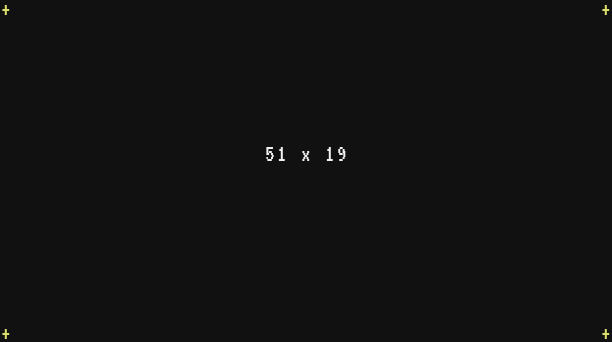
The very same program on a Microcontroller, whose screen is smaller:
local size = term.get_size()
term.set_bg(term.colors.black)
term.clear()
local corners = {{1, 1}, {size.w, 1}, {1, size.h}, {size.w, size.h}}
term.set_fg(term.colors.yellow)
for _, c in ipairs(corners) do
  term.set_cursor(c[1], c[2])
  term.write("+")
end
local text = size.w .. " x " .. size.h
term.set_fg(term.colors.white)
term.set_cursor(math.floor((size.w - #text) / 2) + 1, math.floor(size.h / 2))
term.write(text)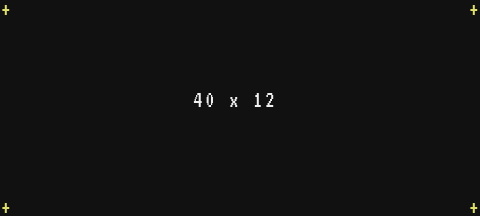
A monitor does not change this size: a wall of monitors shows the same grid, only bigger.
See also term.set_cursor()
term.set_cursor(x, y)
Moves the cursor to column x, row y.
xnumber- the column, 1 at the left
ynumber- the row, 1 at the top
term.clear()
term.set_cursor(5, 2)
term.write("Furnace 1: lit")
term.set_cursor(5, 3)
term.write("Furnace 2: out of coal") Furnace 1: lit
Furnace 2: out of coalThe position must be whole numbers: term.set_cursor(10.5, 1) stops the program with bad argument #1 to 'set_cursor' (number has no integer representation). When you compute a position (to centre a text, for example), round it with math.floor.
A position outside the screen is allowed, without error, but what you write there is lost: the characters that fall off the screen are simply not drawn. Text that starts near the right edge is cut:
term.clear()
term.set_cursor(48, 1)
term.write("Pressure")
term.set_cursor(1, 2)
term.write("only Pres is visible")Pres only Pres is visible
See also term.get_cursor() term.write()
Where the cursor is: {x = ..., y = ...}, counted from 1.
- table
xandy, the position of the cursor
Handy to remember a spot and come back to it later, to update a value without redrawing the rest:
term.clear()
term.set_cursor(1, 1)
write("Iron in vault: ")
local spot = term.get_cursor()
print("...")
-- later, when the count is known:
term.set_cursor(spot.x, spot.y)
term.write("1234 ")Iron in vault: 1234
After term.write, the cursor stands just after the last character, even when that is past the right edge: writing up to the last column of a 51 column screen leaves x at 52.
See also term.set_cursor()
Writing
term.write(text)
Writes text at the cursor, on one line, without going to a new line.
textany- the text to write (a number or any other value is converted, like
tostring)
term.write is the precise tool of the screen: it writes exactly where the cursor is and touches nothing else. It differs from the global write and print on four points:
term.write | write and print | |
|---|---|---|
| at the right edge | the rest of the text is cut | the text continues on the next line |
\n | shown as a space | goes to a new line |
a tab \t | shown as ? | spaces up to the next multiple of 4 columns |
| at the bottom of the screen | never scrolls | scrolls the screen up |
term.clear()
term.set_cursor(1, 1)
term.write("Coal:\t12\nIron:\t40")
term.set_cursor(1, 2)
write("Coal:\t12\nIron:\t40")Coal:?12 Iron:?40 Coal: 12 Iron: 40
So use term.write for anything placed on a grid (a value in a box, a button, a status bar), and print for text that flows, like a log. Other control characters show as ? with both.
The text takes the current colours (term.set_fg, term.set_bg). Writing costs one extra instruction per 16 characters.
See also write() print() term.set_cursor()
Clearing and scrolling
These three functions fill cells with spaces in the current background colour, and none of them moves the cursor.
term.clear()
Clears the whole screen with the current background colour.
The cursor stays where it was, so a clear is nearly always followed by term.set_cursor(1, 1):
print("old line 1")
print("old line 2")
term.clear()
print("after the clear")
local c = term.get_cursor()
print("cursor on row " .. c.y)after the clear cursor on row 4
(The new text starts on row 3, under the place of the old lines.)
To paint the whole screen, choose the background first:
term.set_bg(term.colors.blue)
term.clear()
term.set_cursor(3, 2)
term.set_fg(term.colors.yellow)
term.write("ALL BLUE")
term.clear does not erase what gfx has drawn: call gfx.clear() for the drawings.
See also term.clear_line() gfx.clear()
term.clear_line()
Clears the row of the cursor with the current background colour.
Two common uses: erase a line before writing a shorter text on it, and paint a coloured bar across the screen.
term.set_bg(term.colors.black)
term.clear()
term.set_cursor(1, 1)
term.set_bg(term.colors.green)
term.clear_line()
term.set_fg(term.colors.black)
term.write(" Storage OK")
term.set_cursor(1, 3)
term.set_bg(term.colors.red)
term.clear_line()
term.set_fg(term.colors.white)
term.write(" Boiler overheated")
term.set_bg(term.colors.black)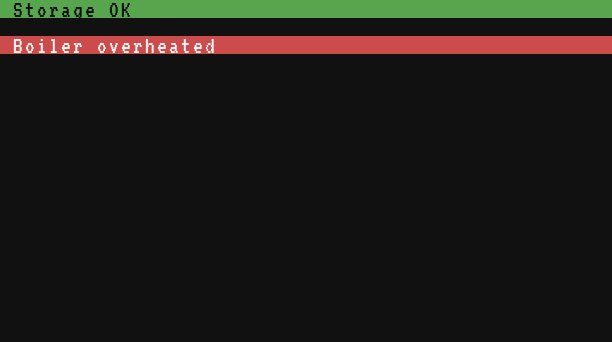
See also term.clear() term.set_cursor()
term.scroll(n)
Moves all the text of the screen up by n rows.
nnumber- how many rows to move the text up; a negative number moves it down
The top rows disappear, and new empty rows (in the current background colour) appear at the bottom. With a negative n, the text moves down and the empty rows appear at the top. Scrolling by the height of the screen or more clears it. n must be a whole number.
term.clear()
term.set_cursor(1, 1)
print("line 1")
print("line 2")
print("line 3")
term.scroll(1)line 2 line 3
The cursor does not move with the text, and gfx drawings stay where they are (gfx.scroll moves them). print scrolls by itself when it reaches the bottom; term.scroll is for a program that places its own lines, like a log under a fixed title (see the patterns below).
See also term.clear()
Colours
There are 16 colours, numbered from 0 to 15 in the order of Minecraft's dyes. Use their names through term.colors: term.colors.red is 14. The Colours page shows them all.
term.set_fg(color)
Sets the colour of the text written from now on.
colornumber- a colour from 0 to 15, like
term.colors.red
What is already on the screen keeps its colours: only the next characters change.
term.set_bg(term.colors.black)
term.clear()
term.set_cursor(1, 1)
term.set_fg(term.colors.lime)
print("Water tank: 92 %")
term.set_fg(term.colors.yellow)
print("Lava tank: 35 %")
term.set_fg(term.colors.red)
print("Fuel tank: 4 %, refill!")
term.set_fg(term.colors.white)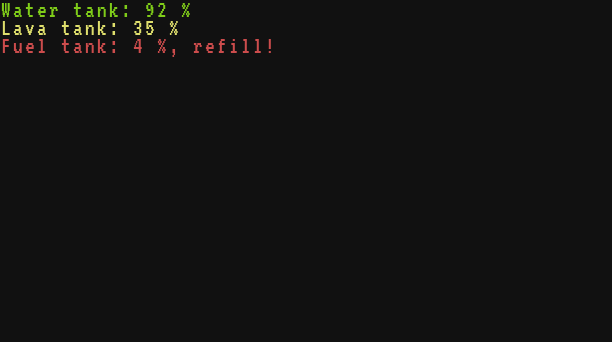
The colour must be a number from 0 to 15. A colour name in quotes is an error here (unlike gfx, which accepts "red"): term.set_fg("red") stops with bad argument #1 to 'set_fg' (number expected, got string), and term.set_fg(16) with bad argument #1 to 'set_fg' (color must be 0..15). With a name in a variable, write term.colors[name].
The colours stay after the program ends: the prompt of the shell would be red too. End your programs with term.set_fg(term.colors.white) and term.set_bg(term.colors.black). The Stop button (Ctrl+T) resets them, and clears the screen.
See also term.set_bg() term.colors
term.set_bg(color)
Sets the background colour of the cells written from now on, and of the cells cleared by term.clear, term.clear_line and term.scroll.
colornumber- a colour from 0 to 15, like
term.colors.blue
A coloured background turns text into a label or a button. Remember to go back to black afterwards:
term.set_bg(term.colors.black)
term.clear()
term.set_cursor(2, 2)
term.set_bg(term.colors.green)
term.set_fg(term.colors.white)
term.write(" OPEN ")
term.set_bg(term.colors.black)
term.write("  ")
term.set_bg(term.colors.red)
term.write(" CLOSE ")
term.set_bg(term.colors.black)
term.set_cursor(2, 4)
term.set_fg(term.colors.light_gray)
term.write("Click a button to move the gate.")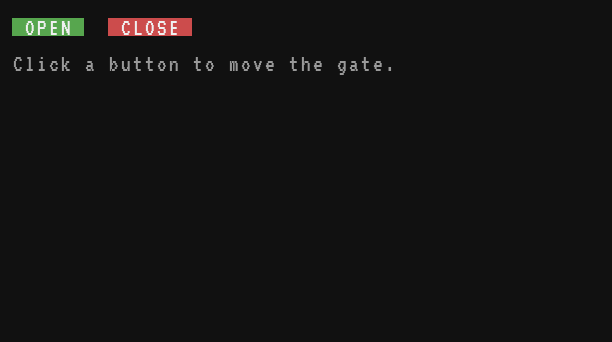
The buttons program turns such buttons into a clickable panel with os.pull_event("click").
See also term.set_fg() term.colors
The table of the 16 colours: white is 0, black is 15.
- table
- the 16 colour names, each giving its number
| number | name | number | name |
|---|---|---|---|
| 0 | white | 8 | light_gray |
| 1 | orange | 9 | cyan |
| 2 | magenta | 10 | purple |
| 3 | light_blue | 11 | blue |
| 4 | yellow | 12 | brown |
| 5 | lime | 13 | green |
| 6 | pink | 14 | red |
| 7 | gray | 15 | black |
The same names and numbers work in gfx. Here they are on a Personal Computer:
term.set_bg(term.colors.black)
term.clear()
local names = {"white", "orange", "magenta", "light_blue", "yellow", "lime", "pink", "gray",
  "light_gray", "cyan", "purple", "blue", "brown", "green", "red", "black"}
for i, name in ipairs(names) do
  local column = 2 + math.floor((i - 1) / 8) * 25
  local row = 2 + (i - 1) % 8 * 2
  term.set_cursor(column, row)
  term.set_fg(term.colors.gray)
  term.write("[")
  term.set_bg(term.colors[name])
  term.write("    ")
  term.set_bg(term.colors.black)
  term.write("]")
  term.set_fg(term.colors.white)
  term.write(" " .. term.colors[name] .. " " .. name)
end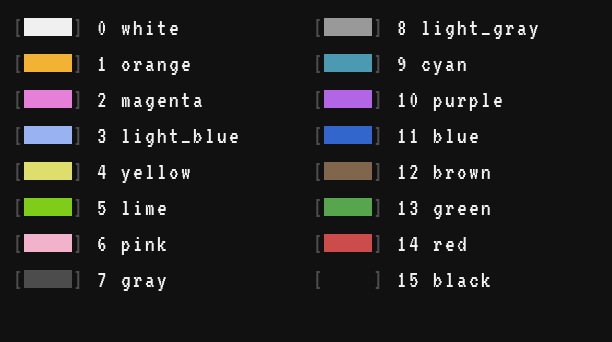
See also term.set_fg() term.set_bg() Colours
Monitors and older screens
Monitors. A CRT Monitor or an LCD Monitor touching the computer shows its screen: the same grid, the same characters and colours, scaled to fill the monitor (several monitors side by side make one big screen, up to 8 × 6 blocks). The program does not see a difference: term.get_size gives the size of the computer's own screen. The CRT Monitor keeps the look of the computer (green or amber on the older ones, green phosphor for the Tube Computer's paper), the LCD Monitor always shows the colours. See Monitors.
Phosphor screens. The Transistor Mainframe (green) and the Minicomputer (amber) have monochrome screens: every character lights up in the colour of the phosphor, and background colours are not shown. term.set_fg and term.set_bg still work (no error), so a program written for a colour screen runs unchanged, but its colours vanish. Here is the "OPEN / CLOSE" example above on a Transistor Mainframe:
term.set_bg(term.colors.black)
term.clear()
term.set_cursor(2, 2)
term.set_bg(term.colors.green)
term.set_fg(term.colors.white)
term.write(" OPEN ")
term.set_bg(term.colors.black)
term.write("  ")
term.set_bg(term.colors.red)
term.write(" CLOSE ")
term.set_bg(term.colors.black)
term.set_cursor(2, 4)
term.set_fg(term.colors.light_gray)
term.write("Click a button to move the gate.")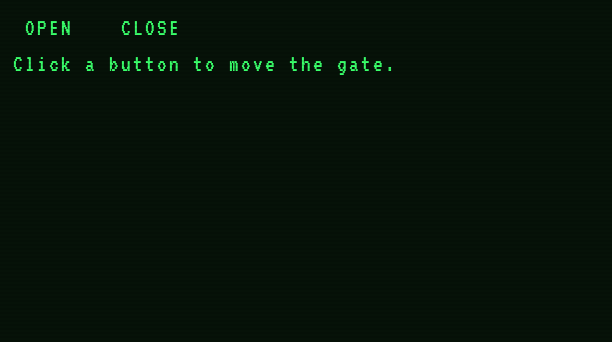
The buttons cannot be told apart from the text any more. On these screens, show things with characters instead: brackets around buttons, > for a selection, a bar of # for a level.
term.clear()
term.set_cursor(2, 2)
term.write("[ OPEN ]  [ CLOSE ]")
term.set_cursor(2, 4)
term.write("Water  [##########----------]  50 %")
term.set_cursor(2, 5)
term.write("Lava   [###-----------------]  15 %")
term.set_cursor(2, 7)
term.write("> Start the pumps")
term.set_cursor(2, 8)
term.write("  Stop the pumps")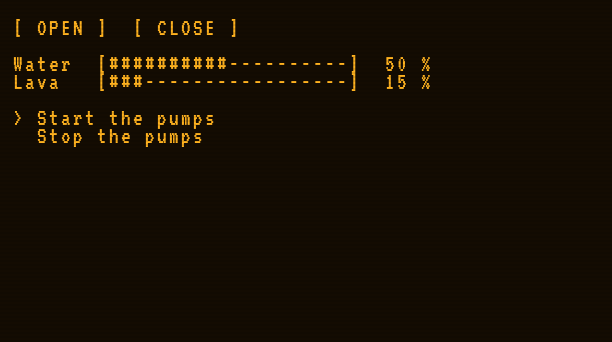
The teletype. The Tube Computer prints on a sheet of paper, 40 characters by 14 lines, in dark ink. It is still the same kind of screen: print makes the paper go up, term.set_cursor, term.clear and term.scroll work as on the others. Only the colours are not printed, and the paper cannot be clicked: clicks in the terminal window send no click event (a monitor attached to a Tube Computer can still be pressed). There is no gfx on the Tube Computer.
print("== SILICON REPORT ==")
print("boules pulled:    12")
print("wafers cut:       72")
print("rejected: 3")== SILICON REPORT == boules pulled: 12 wafers cut: 72 rejected: 3
Common patterns
A centred title. Subtract the length of the text from the width, halve it, and round down:
local function center(y, text)
  local size = term.get_size()
  term.set_cursor(math.floor((size.w - #text) / 2) + 1, y)
  term.write(text)
end
term.clear()
center(1, "BOILER ROOM")
A status bar at the bottom. Paint the last row, write on it, then put the cursor back where it was, so that the print calls of the rest of the program are not disturbed:
local function status(text)
  local size = term.get_size()
  local back = term.get_cursor()
  term.set_cursor(1, size.h)
  term.set_bg(term.colors.gray)
  term.set_fg(term.colors.white)
  term.clear_line()
  term.write(" " .. text)
  term.set_bg(term.colors.black)
  term.set_cursor(back.x, back.y)
end
status("Press line: running, 37 items/min")
Redraw one line without flicker. A program that clears the whole screen and redraws everything every second makes the screen blink: on a slow computer the drawing takes several ticks, and players see it half done. Draw the fixed parts once, then overwrite only the values that change. Pad the new text with spaces so that a shorter value erases the end of the longer one:
term.clear()
term.set_cursor(1, 1)
term.write("Iron ingots:")
term.set_cursor(1, 2)
term.write("Gold ingots:")
local function show(row, value)
  term.set_cursor(14, row)
  term.write(string.format("%-8d", value))  -- 8 columns, padded with spaces
end
show(1, 1234)
show(2, 56)
show(1, 99)  -- "1234" becomes "99", no "9934"
term.set_cursor(1, 4) -- leave the cursor under the screen you drewIron ingots: 99 Gold ingots: 56
A screen with a title bar. Everything together: a coloured bar with a centred title, values in two colours, and a status bar:
local size = term.get_size()
term.set_bg(term.colors.black)
term.clear()

local function bar(y, color, text)
  term.set_cursor(1, y)
  term.set_bg(color)
  term.set_fg(term.colors.white)
  term.clear_line()
  term.set_cursor(math.floor((size.w - #text) / 2) + 1, y)
  term.write(text)
  term.set_bg(term.colors.black)
end

local function value(y, label, amount, unit, ok)
  term.set_cursor(3, y)
  term.set_fg(term.colors.light_gray)
  term.write(label)
  term.set_cursor(24, y)
  if ok then term.set_fg(term.colors.lime) else term.set_fg(term.colors.red) end
  term.write(amount .. " " .. unit)
end

bar(1, term.colors.blue, "STEAM ENGINE - BOILER ROOM")
value(3, "Boiler heat", 18, "/ 18", true)
value(4, "Water intake", 1620, "mB/t", true)
value(5, "Engines running", 6, "of 8", false)
value(6, "Stress capacity", 98304, "su", true)
bar(size.h, term.colors.gray, "updated every second")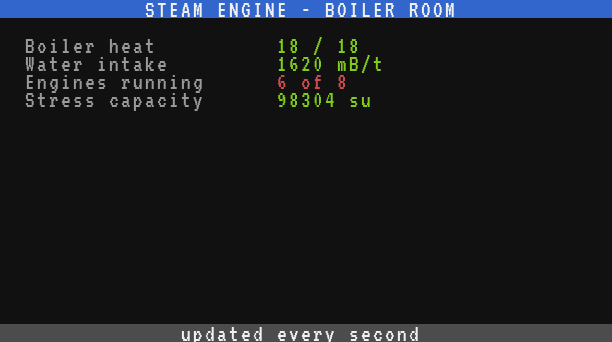
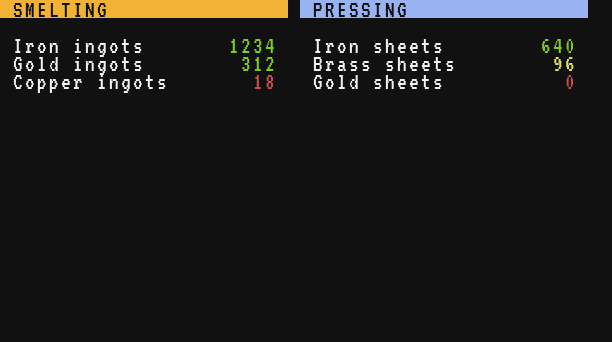
A two-column dashboard. Two panels side by side, each with its own title, for two parts of a factory:
local size = term.get_size()
local half = math.floor(size.w / 2)
term.set_bg(term.colors.black)
term.clear()

local function panel(x, title, color, rows)
  term.set_cursor(x, 1)
  term.set_bg(color)
  term.set_fg(term.colors.black)
  term.write(string.format(" %-" .. (half - 2) .. "s", title))
  term.set_bg(term.colors.black)
  for i, row in ipairs(rows) do
    term.set_cursor(x + 1, i + 2)
    term.set_fg(term.colors.white)
    term.write(row[1])
    term.set_cursor(x + half - 8, i + 2)
    term.set_fg(row[3])
    term.write(string.format("%6d", row[2]))
  end
end

panel(1, "SMELTING", term.colors.orange, {
  {"Iron ingots", 1234, term.colors.lime},
  {"Gold ingots", 312, term.colors.lime},
  {"Copper ingots", 18, term.colors.red},
})
panel(half + 1, "PRESSING", term.colors.light_blue, {
  {"Iron sheets", 640, term.colors.lime},
  {"Brass sheets", 96, term.colors.yellow},
  {"Gold sheets", 0, term.colors.red},
})
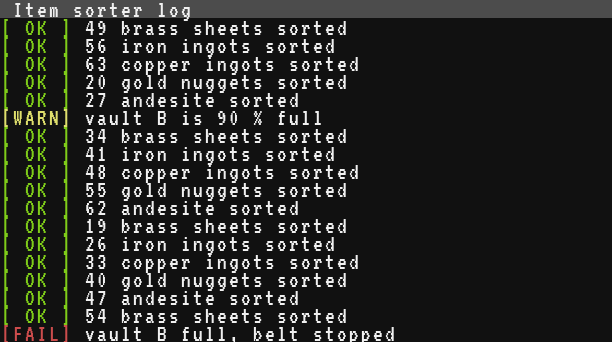
A coloured log under a fixed title. Each line has a coloured tag. When the screen is full, term.scroll moves the lines up and the title is drawn again on top:
local size = term.get_size()
local row = 2

local function title()
  term.set_cursor(1, 1)
  term.set_bg(term.colors.gray)
  term.set_fg(term.colors.white)
  term.clear_line()
  term.write(" Item sorter log")
  term.set_bg(term.colors.black)
end

local function log(color, tag, text)
  if row > size.h then
    term.scroll(1)
    title()
    row = size.h
  end
  term.set_cursor(1, row)
  term.set_fg(color)
  term.write(tag)
  term.set_fg(term.colors.white)
  term.write(" " .. text)
  row = row + 1
end

term.set_bg(term.colors.black)
term.clear()
title()
local cargo = {"iron ingots", "copper ingots", "gold nuggets", "andesite", "brass sheets"}
for i = 1, 20 do
  local item = cargo[(i - 1) % #cargo + 1]
  log(term.colors.lime, "[ OK ]", (i * 7 % 50 + 14) .. " " .. item .. " sorted")
  if i == 9 then
    log(term.colors.yellow, "[WARN]", "vault B is 90 % full")
  end
end
log(term.colors.red, "[FAIL]", "vault B full, belt stopped")