
 Keyboard
What the keyboard sends to a program, the shortcuts of the terminal, and the keys of read(), the prompt and the editor.
The keyboard of a computer is its terminal window. Right-click the computer (or a monitor showing it) to open it: while it is open, what the player types goes to the computer, from up to 16 blocks away. Monitors have no keyboard of their own.
A program receives the keyboard as events: a key event for the special keys (Enter, the arrows...), a char event for each character typed. The terminal keeps a few shortcuts for itself, and read() turns the keys into a line of text.
Keys and characters
These ten keys send a key event, with the name of the key in e.key:
| Key | e.key |
|---|---|
| Enter (and Enter of the keypad) | "enter" |
| Backspace | "backspace" |
| Delete | "delete" |
| ↑ ↓ ← → | "up", "down", "left", "right" |
| Home / End | "home", "end" |
| Tab | "tab" |
Everything that types a character sends a char event instead, with the character in e.char: letters, digits, punctuation, and the space bar (e.char == " "). Letters keep their case ("a" or "A", with Shift or Caps Lock), and the keyboard layout is the player's: an AZERTY keyboard types "z" where a QWERTY one types "w".
The other keys send nothing to the program: Shift, Ctrl and Alt alone, F1 to F12, Page Up, Page Down, Insert... and Escape, which closes the terminal window. There is no event when a key is released.
A small program to see what each key sends:
print("Type something (Ctrl+T to stop)")
while true do
  local e = os.pull_event()
  if e.name == "key" then print("key: " .. e.key) end
  if e.name == "char" then print("char: '" .. e.char .. "'") end
  if e.name == "paste" then print("paste: " .. #e.text .. " characters") end
end> keytest Type something (Ctrl+T to stop) char: 'H' char: 'i' char: ' ' key: left key: enter paste: 18 characters
Shortcuts of the terminal
The terminal takes these keys for itself: a program never sees them.
| Shortcut | Button | What it does |
|---|---|---|
| Ctrl+T | Stop | stops the running program |
| Ctrl+R | Reboot | restarts the computer |
| Ctrl+V | pastes the clipboard | |
| Esc | closes the terminal window; the program keeps running | |
| Switch off / Switch on | switches the computer off, or on again |
Ctrl+T stops the program at once: pcall cannot catch it. The screen is cleared (text, colours and drawings), Terminated is printed in red and the prompt comes back. Redstone outputs and Redstone Link transmissions keep the values the program gave them: reboot (or switch off) to release them. At the prompt, Ctrl+T prints ^T, drops the line being typed and leaves the brass interpreter.
Ctrl+R works like a power cut: the program stops, the redstone outputs, the Redstone Link transmissions and the Display Link lines are released, the event queue is emptied, then the computer boots and runs startup again. A computer boots at most once every 10 ticks (half a second): a quicker request waits for its turn.
Ctrl+V sends the text of the clipboard, 4096 characters at most, as a paste event (nothing when the clipboard is empty). At the prompt and in read(), the text is typed into the line instead, up to its first line break, tabs becoming spaces.
Switch off stops everything like Ctrl+R and leaves the screen blank; the computer stays off, even with rotation, until Switch on.
Typing a line: read() and the prompt
The shell prompt and read() share the same line editor:
| Key | At the prompt | In read() |
|---|---|---|
| characters, Ctrl+V | typed at the cursor | the same |
| ← → | move the cursor | the same |
| Home / End | start / end of the line | the same |
| Backspace / Delete | erase before / under the cursor | the same |
| Enter | runs the command | read() returns the line |
| ↑ ↓ | the previous / next commands | nothing |
| Tab | completes the word | nothing |
- A line holds 1024 characters at most. When it is wider than the screen, it scrolls sideways.
read(mask)shows the first character ofmaskinstead of each character typed:read("*")for a password.- While
read()waits, the other events stay in the queue for later: a redstone change or a message is not lost. - Keys typed before
read()is called are not lost either: they wait in the queue and go into the line. A player who types during asleepsees the text appear at the nextread(). - The prompt remembers the last 50 command lines (not the empty ones, and not twice the same in a row).
- Tab at the prompt completes the command (first word), the name of an example after
examples, and file and folder names (ga/snbecomesgames/snake/). In thebrassinterpreter it completes globals and library members (term.set_cbecomesterm.set_cursor). With several matches, it completes their common start.
A door code with a hidden entry, for a vault guarded by an iron door on the top face:
write("Code: ")
local code = read("*")
if code == "creeper" then
  rs.set("top", true)
  sleep(3)
  rs.set("top", false)
else
  print("Wrong code")
endIn the editor
The editor (edit <file>) has its own keys, in the spirit of a code editor. The guide The shell and the editor shows them at work.
| Shortcut | What it does |
|---|---|
| Ctrl+S | saves |
| Esc | back to the terminal (press twice to leave without saving) |
| Ctrl+Z / Ctrl+Y (or Ctrl+Shift+Z) | undo / redo |
| Ctrl+X / Ctrl+C / Ctrl+V | cut / copy / paste (without a selection: the whole line) |
| Ctrl+A | selects everything |
| Ctrl+/ (or Ctrl+: on AZERTY) | comments or uncomments the lines |
| Alt+↑ / Alt+↓ | moves the lines |
| Shift+Alt+↑ / Shift+Alt+↓ | duplicates the lines |
| Ctrl+← / Ctrl+→ | jumps by word |
| Ctrl+Backspace / Ctrl+Delete | erases a word |
| Ctrl+Home / Ctrl+End | start / end of the file |
| Tab / Shift+Tab | indents / unindents the selected lines |
| Ctrl+Space | opens the completion list |
| Tab or Enter, ↑ ↓, Esc | in the completion list: accept, choose, close |
Shift with a move (arrows, Home, End, Page Up, Page Down) selects. The letter shortcuts follow the keyboard layout.
Example: moving a cursor
A program that reads both kinds of events: the arrows come as key events, the letters as char events. One table maps both to a move, so the arrows, WASD and ZQSD all work. Space leaves a mark, Enter quits.
local size = term.get_size()
local x, y = math.floor(size.w / 2), math.floor(size.h / 2)
local marks = {}
local MOVES = {
  up = {0, -1}, down = {0, 1}, left = {-1, 0}, right = {1, 0},
  w = {0, -1}, a = {-1, 0}, s = {0, 1}, d = {1, 0},
  z = {0, -1}, q = {-1, 0},
}

local function put(text, color)
  term.set_cursor(x, y)
  term.set_fg(color)
  term.write(text)
end

term.clear()
term.set_cursor(1, 1)
term.set_fg(term.colors.yellow)
term.write("Arrows, WASD or ZQSD: move")
term.set_cursor(1, 2)
term.write("Space: mark   Enter: quit")
put("@", term.colors.lime)

local running = true
while running do
  local e = os.pull_event()
  local move = nil
  if e.name == "key" then
    move = MOVES[e.key]
    if e.key == "enter" then running = false end
  elseif e.name == "char" then
    move = MOVES[string.lower(e.char)]
    if e.char == " " then marks[x .. "," .. y] = true end
  end
  if move then
    if marks[x .. "," .. y] then put("#", term.colors.orange) else put(" ", term.colors.white) end
    x = math.max(1, math.min(size.w, x + move[1]))
    y = math.max(3, math.min(size.h, y + move[2]))
    put("@", term.colors.lime)
  end
end
term.set_fg(term.colors.white)
term.clear()
term.set_cursor(1, 1)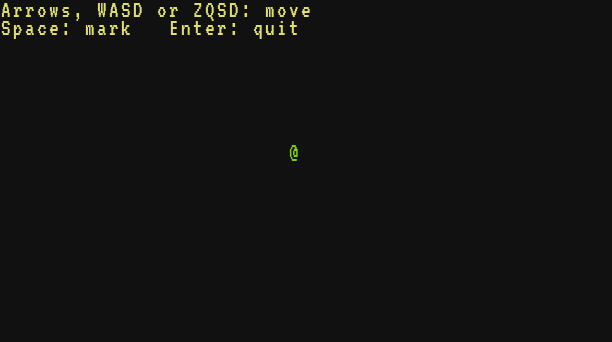
The cursor stays below the two lines of help (row 3 at least), and math.max / math.min keep it on the screen whatever its size: the same program runs on a Microcontroller (40 × 12) and on a Modern Computer (64 × 24).