
 Events
How a program waits for the world: the event queue, os.pull_event, timers, and the main loop that reacts to buttons, keys and messages at once.
A program that runs a contraption spends most of its life waiting: for a button, a key, a message from another computer, the end of a delay. In Brass, all of these arrive the same way, as events.
An event is a small table that describes something that just happened. It always has a name, and some events carry more fields:
local lever = {name = "redstone"}
local keypress = {name = "key", key = "enter"}
local order = {name = "message", sender = 12, channel = "door", data = "open", via = "cable", distance = 8.5}
This page explains where events come from, how to wait for them without missing any, and how to write the main loop that every serious program ends up with.
The event queue
Each computer keeps a queue of events. When something happens (a redstone input changes, a key is pressed, a message arrives, a timer rings), the computer adds an event at the end of the queue. os.pull_event takes the oldest event out of the queue and returns it. When the queue is empty, the program waits inside os.pull_event until an event arrives. Waiting costs nothing: the computer runs no instructions meanwhile.
os.queue_event("door", "open")
os.queue_event("lamp", 15)
local first = os.pull_event()
local second = os.pull_event()
print(first.name, first.data)
print(second.name, second.data)door open lamp 15
os.queue_event adds an event of your own to the queue (its second argument becomes e.data). Events come out in the order they went in.
A few rules about the queue:
- It holds 256 events at most. When it is full, the oldest event is dropped to make room for the new one. A program that stops reading events for a long time loses the oldest ones first.
- Events keep arriving while the program is busy or asleep in
sleep: they wait in the queue (see sleep and events). - The queue is emptied when the computer reboots or shuts down. A computer that is switched off receives nothing.
- At the shell prompt, when no program runs, events other than typing are thrown away.
Waiting for one kind of event
os.pull_event takes an optional name. With it, the call returns only an event of that name:
os.pull_event("redstone")   -- waits until a redstone input changes
print("the button was pressed (or released)")
This is the easiest way to wait for one thing. But a filter has a price: every event that does not match is thrown away, not kept for later.
os.queue_event("click")
os.queue_event("redstone")
os.queue_event("message")
local e = os.pull_event("redstone")
print("got " .. e.name)
os.queue_event("check")
print("then " .. os.pull_event().name)got redstone then message
The click that was before the redstone event is gone. The message, which came after, is still in the queue. So a program that waits in a loop with os.pull_event("redstone") loses every click on its screen and every message that arrives in the meantime.
net.receive is os.pull_event("message") in disguise: it also throws away every other event. A program that must react to messages and to something else needs the main loop below.
A filter is the right tool when the program really does one thing at a time: a door that waits for its button, then opens, then waits again. As soon as two things can happen, drop the filter.
The events of the game
| name | when | fields |
|---|---|---|
redstone | a redstone input changes on one of the six faces | none: read the faces with rs.get |
timer | a timer started by os.start_timer ends | id |
key | a special key is pressed in the terminal | key: "enter", "backspace", "delete", "up", "down", "left", "right", "home", "end", "tab" |
char | a character is typed in the terminal (letters, digits, space...) | char: the character |
paste | Ctrl+V in the terminal | text: the pasted text (4096 characters at most) |
click | a click on the terminal screen (not on the Tube Computer's paper), or a right-click on a monitor | x, y (character), px, py (gfx pixel), button, source |
drag | the mouse moves with a button held, in the terminal | the same as click |
message | a message from another computer (net) | sender, channel, data, via, distance |
link | the strength received on a Redstone Link frequency the program used changes (link) | a, b, power |
disk | a storage medium is inserted or ejected | inserted: true or false |
| any name | os.queue_event(name, data) | data |
The Events page details every field. A few things worth knowing now:
- The
redstoneevent says that something changed, not what. Read the faces you care about withrs.getwhen it arrives (seeRedstone and Create links). - Clicks count from 1, 1 at the top left.
buttonis 1 for the left button, 2 for the right one, 3 for the middle one; a press on a monitor always hasbutton1.sourceis"terminal"or"monitor". - A right-click on a monitor reaches the program only once the program has waited for clicks: with
os.pull_event()(no filter) oros.pull_event("click"). Otherwise the right-click opens the terminal, as usual. Sneaking always opens the terminal. - Ctrl+T (stop) and Ctrl+R (reboot) are not events: a program cannot catch them.
The main loop
Almost every program that controls something has the same heart: one os.pull_event without filter, in an endless loop, followed by a test on e.name:
while true do
  local e = os.pull_event()
  if e.name == "redstone" then
    -- a button, a lever, a detector
  elseif e.name == "click" then
    -- a press on the screen
  elseif e.name == "message" then
    -- another computer talks to us
  elseif e.name == "timer" then
    -- time to do the periodic work
  end
end
Nothing is lost, since every event comes out of the queue and goes through the tests. Events the program does not care about simply fall through.
Keep each branch short: while one branch runs, the other events wait. Put the state of the program (is the door open, which item is selected) in variables at the top of the file, so that every branch can read and change it.
When there are many kinds of events, a table of handlers reads better than a long if. Each handler is a function stored under the name of the event:
local handlers = {}
local crates = 0

function handlers.crate(e)
  crates = crates + e.data
end

function handlers.report(e)
  print("crates so far: " .. crates)
end

os.queue_event("crate", 3)
os.queue_event("noise")
os.queue_event("crate", 4)
os.queue_event("report")
for i = 1, 4 do
  local e = os.pull_event()
  local handler = handlers[e.name]
  if handler then
    handler(e)
  end
endcrates so far: 7
The noise event has no handler: it is ignored without any error. (A real program uses while true do instead of the for loop, which only stops this example after four events.)
Timers: periodic work without missing events
sleep(5) stops the program for 5 seconds: no event is handled during that time. To do something every few seconds and stay responsive, start a timer instead. os.start_timer(seconds) returns at once with a number, the id of the timer; when the time is up, a timer event with that id joins the queue.
A timer rings once. For periodic work, start a new one each time the previous one rings:
local refresh = os.start_timer(2)
while true do
  local e = os.pull_event()
  if e.name == "timer" and e.id == refresh then
    -- every 2 seconds: read the sensors, redraw the screen...
    refresh = os.start_timer(2)
  elseif e.name == "click" then
    -- clicks are handled at once, even between two refreshes
  end
end
Always compare e.id: as soon as a program uses two timers, a timer event alone does not say which one rang. A timer cannot be cancelled: when you no longer need it, forget its id, and its event will fall through the tests.
Since os.pull_event has no time limit, a timer also gives a timeout: wait for something, but not forever.
local function wait_for(name, seconds)
  local timeout = os.start_timer(seconds)
  while true do
    local e = os.pull_event()
    if e.name == name then
      return e
    elseif e.name == "timer" and e.id == timeout then
      return nil
    end
  end
end

local e = wait_for("redstone", 1)
if e == nil then
  print("nobody pressed the button")
endnobody pressed the button
Like a filter, this function drops the other events it reads while it waits. Use it for short waits, or call the handlers of your main loop from inside it.
Time and timers explains timers, sleep and the clocks of the computer in more detail.
sleep and events
sleep does not take events out of the queue. Whatever happens while the program sleeps waits in the queue, and the next os.pull_event returns it:
os.start_timer(0.5)
sleep(2)
local e = os.pull_event()
print(e.name .. " rang during the sleep")timer rang during the sleep
Nothing is lost (as long as fewer than 256 events pile up), but everything is late: a button pressed at the start of a sleep(10) is only seen 10 seconds later. In a program that must react, replace long sleeps with timers.
read() and events
read() waits for the player to type a line in the terminal. It only consumes key, char and paste events: the other events (redstone, timers, messages, clicks) stay in the queue, in their order, and the program finds them with os.pull_event after read() returns.
local timeout = os.start_timer(30)
write("Password: ")
local password = read("*")   -- the stars hide what is typed
-- a redstone change, a click or the timer during the typing are still in the queue here
While a program waits in os.pull_event, the keys typed in the terminal arrive as key and char events instead: nothing is echoed on the screen, the program decides what to do with each key.
How fast a program reacts
A computer runs once per tick (20 times a second) while it turns. An event queued during a tick is handled at the latest at the computer's next tick, so a waiting program reacts within a twentieth of a second.
When many events arrive together, the program can come back from os.pull_event (or any other wait) 16 times per tick at most, all within the instruction budget of that tick. A burst of 40 events is handled over three ticks: 16 in the first one, 16 in the second, the last 8 in the third.
for i = 1, 40 do
  os.queue_event("crate", i)
end
local start = os.time()
for i = 1, 40 do
  os.pull_event("crate")
end
print("done " .. os.time() - start .. " ticks after the start")done 2 ticks after the start
A computer that does not turn (no rotation, or an overstressed network) is frozen: its events wait in the queue, and the program handles them as soon as the rotation comes back. The Speed, memory and limits guide explains the budget.
Example: a door with a button, a timer and the network
A door controller on a Minicomputer (or newer, for the network). A stone button is on the left face, an iron door stands on top of the computer. The door opens when the button is pressed, or when another computer sends "open" on the "door" channel, and closes by itself 5 seconds later. A "close" message closes it at once.
local DOOR = "top"
local close_timer = nil   -- id of the pending timer, nil when the door is closed

local function open_door()
  rs.set(DOOR, true)
  close_timer = os.start_timer(5)   -- a new timer: the previous one will be ignored
end

local function close_door()
  rs.set(DOOR, false)
  close_timer = nil
end

while true do
  local e = os.pull_event()
  if e.name == "redstone" then
    if rs.get("left") > 0 then   -- only the press, not the release
      open_door()
    end
  elseif e.name == "message" and e.channel == "door" then
    if e.data == "open" then
      open_door()
    elseif e.data == "close" then
      close_door()
    end
  elseif e.name == "timer" and e.id == close_timer then
    close_door()
  end
end
Three sources of events, one loop, nothing missed. Pressing the button again while the door is open starts a new timer: the event of the old one no longer matches close_timer, so the door stays open 5 seconds after the last press. Another computer opens it with net.send(id, "open", "door").
Example: a menu driven by the keyboard
A menu for a factory: the arrows move the selection, Enter runs the selected line, the number keys choose a line directly, and a click (in the terminal or on a monitor) works too. A Create Clutch is on the left face (a powered clutch stops the line), a lamp on top.
local items = {"Start the press line", "Stop the press line", "Toggle the lamp", "Quit"}
local selected = 1

local function draw()
  term.set_bg(term.colors.black)
  term.clear()
  term.set_cursor(3, 2)
  term.set_fg(term.colors.yellow)
  term.write("PRESS LINE CONTROL")
  for i, label in ipairs(items) do
    term.set_cursor(3, 3 + i)
    if i == selected then
      term.set_bg(term.colors.blue)
      term.set_fg(term.colors.white)
    else
      term.set_bg(term.colors.black)
      term.set_fg(term.colors.light_gray)
    end
    term.write(" " .. i .. ". " .. label .. " ")
  end
  term.set_bg(term.colors.black)
  term.set_fg(term.colors.gray)
  term.set_cursor(3, 10)
  term.write("Arrows + Enter, a number, or a click")
end

local function run(i)
  if i == 1 then
    rs.set("left", false)   -- clutch released: the line turns
  elseif i == 2 then
    rs.set("left", true)    -- clutch powered: the line stops
  elseif i == 3 then
    rs.set("top", rs.get_output("top") == 0)
  end
end

draw()
while true do
  local e = os.pull_event()
  local chosen = nil
  if e.name == "key" then
    if e.key == "up" and selected > 1 then
      selected = selected - 1
    elseif e.key == "down" and selected < #items then
      selected = selected + 1
    elseif e.key == "enter" then
      chosen = selected
    end
  elseif e.name == "char" then
    local n = tonumber(e.char)
    if n ~= nil and n >= 1 and n <= #items then
      chosen = n
    end
  elseif e.name == "click" and e.y >= 4 and e.y < 4 + #items then
    chosen = e.y - 3
  end
  if chosen ~= nil then
    selected = chosen
    if chosen == #items then
      break
    end
    run(chosen)
  end
  draw()
end
term.clear()
term.set_cursor(1, 1)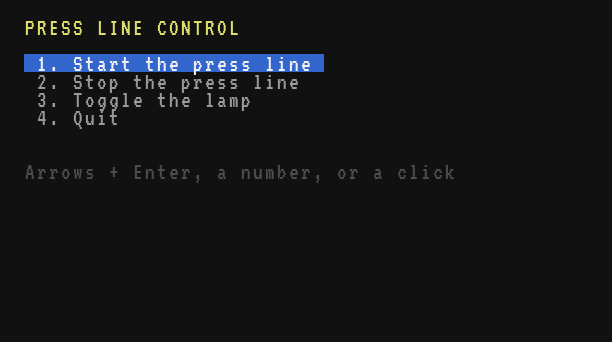
The loop reads every event without filter, so the same menu works with the keyboard, the mouse and a monitor. Note the test n ~= nil: tonumber returns nil for a letter. The Screens and monitors guide shows how to draw buttons and bigger interfaces, and buttons is a ready-made template.