
 Monitors
CRT and LCD screens that show the terminal of the computer they touch, up to 8 by 6 blocks, and take presses.
A monitor shows, in the world, the screen of the computer it touches: the same text, the same colours, the same gfx drawings. It is not a second screen with its own content: whatever your program prints in its terminal appears on the monitor, so everyone nearby can read a stock report, a station board or an altimeter without opening the computer. Several monitors side by side merge into one big screen, and players can press it like a touch screen.
local screen = peripheral.wrap("top")
local s = screen.size()
print("the screen is " .. s.w .. " by " .. s.h .. " blocks")monitor.size() | The size of the screen, in blocks: for a merged wall, the whole wall, whichever of its blocks you wrapped. |
Setting up
Two kinds. Both work the same way, they only look different:
| block | screen |
|---|---|
| CRT Monitor (transistor age) | thick frame; it glows like the computer's own tube: green for the Tube Computer and the Transistor Mainframe, amber for the Minicomputer, in colour from the Personal Computer on |
| LCD Monitor (digital age) | thin frame; always in colour, even for an older computer whose own screen is monochrome |
Showing a computer. Place the monitor so that it touches the computer, by its back, a side, its top or its bottom, anything but its screen face. The screen faces you when you place it. Only a monitor that touches the computer shows it: a Data Cable does not carry the picture. Touch a screen with a single computer; with two, it shows only one of them.
Big screens. Monitors of the same kind (CRT with CRT, LCD with LCD), facing the same way, placed side by side in a flat rectangle, merge into one screen of up to 8 blocks wide and 6 blocks tall. One computer touching any block of the rectangle is enough. If the shape is not a full rectangle (a hole, an L shape) or is larger than 8 by 6, every block stays a small screen of its own.
A bigger wall, bigger letters. A wall shows the same terminal (51 by 19 characters on a Personal Computer, see The computers) with bigger characters: you do not get more lines. The picture keeps its proportions, centred, with dark margins where the wall's shape differs. The shapes that fill best:
| computer | best walls |
|---|---|
| Transistor Mainframe, Minicomputer, Personal Computer, Modern Computer | 7 × 4, then 5 × 3 |
| Microcontroller (a wider screen) | 2 × 1, 4 × 2, 8 × 4 |
| Tube Computer | 7 × 4, 8 × 4 |
The screen goes dark when the computer stops turning. Players see it from up to 64 blocks away.
Pressing the screen. Right-click a monitor: it opens the terminal of its computer, even from the far end of a wall. While the running program waits for clicks (it has called os.pull_event("click") or os.pull_event()), a right-click on the screen face presses the screen instead (a light pen on the CRT, a touch screen on the LCD), and sneaking + right-click still opens the terminal. The program receives a click event with the character (e.x, e.y) and the gfx pixel (e.px, e.py) under your hand, e.button 1 and e.source "monitor". A press on the frame or in the dark margins is ignored. Monitor presses work on every computer, the Tube Computer included, although clicks inside the terminal window do not work on its teletype paper. See Screens and monitors and Events.
Reaching it from a computer. The monitor is also a peripheral, to read its size: against a face (peripheral.wrap("top")), or on a Data Cable from the Minicomputer on (monitor@120,65,-35, each block of a wall under its own name). peripheral.find("monitor") looks at the faces first, so it finds the screen the computer shows.
Screen size
The size of the screen, in blocks: for a merged wall, the whole wall, whichever of its blocks you wrapped.
- table
{w = width, h = height}, the size in blocks of the whole screen this monitor belongs to
The terminal is the same size whatever the wall, so this is not the number of characters (that is term.get_size). Use it to adapt the look of a program to the screen it is shown on, for example to draw bigger letters on a small screen that people read from far away:
local screen = peripheral.find("monitor")
if screen == nil then
  error("no monitor touches the computer")
end
local s = screen.size()
local scale = 2
if s.w * s.h <= 4 then
  scale = 4  -- one or two blocks: make the text readable from the platform
end
gfx.clear("black")
gfx.text(4, 4, "PLATFORM 2", "yellow", scale)
A single monitor gives {w = 1, h = 1}. When the block is not a monitor any more, the call stops the program with monitor removed.
Examples
A station departure board
The program draws on its own screen; a 7 × 4 wall of LCD Monitors against the computer shows it to the whole platform. Here the departures are written in the program; a real board would build them from net messages sent by the trains' computers.
local departures = {
  {"06:10", "IRON MINE", "1"},
  {"06:25", "HARBOUR", "2"},
  {"06:40", "BRASS WORKS", "1"},
  {"07:05", "NORTH FARM", "3"},
}
gfx.clear("blue")
gfx.text(10, 8, "DEPARTURES", "yellow", 3)
gfx.text(250, 10, "06:02", "white", 2)
gfx.line(10, 30, 296, 30, "light_blue")
for i, d in ipairs(departures) do
  local y = 14 + i * 30
  gfx.text(10, y, d[1], "white", 2)
  gfx.text(70, y, d[2], "white", 2)
  gfx.text(280, y, d[3], "yellow", 2)
end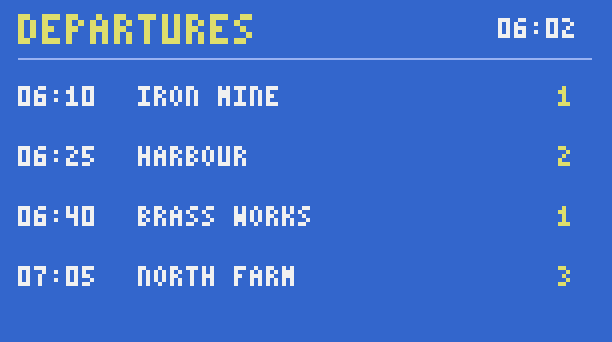
Buttons on the wall
The same buttons work in the terminal (a left click) and on the monitor (a right-click on the screen). The top output drives the gate: a door, a Create Mechanical Piston or a clutch.
local function button(y, label, color)
  term.set_bg(color)
  for row = y, y + 2 do
    term.set_cursor(3, row)
    write("                ")
  end
  term.set_cursor(3 + math.floor((16 - #label) / 2), y + 1)
  write(label)
  term.set_bg(term.colors.black)
end

term.set_bg(term.colors.black)
term.clear()
term.set_cursor(3, 1)
write("GATE CONTROL")
button(3, "OPEN", term.colors.green)
button(7, "SHUT", term.colors.red)
while true do
  local e = os.pull_event("click")
  if e.x >= 3 and e.x <= 18 then
    if e.y >= 3 and e.y <= 5 then
      rs.set("top", true)
    elseif e.y >= 7 and e.y <= 9 then
      rs.set("top", false)
    end
  end
  term.set_cursor(3, 11)
  term.clear_line()
  write("last press: " .. e.source)
end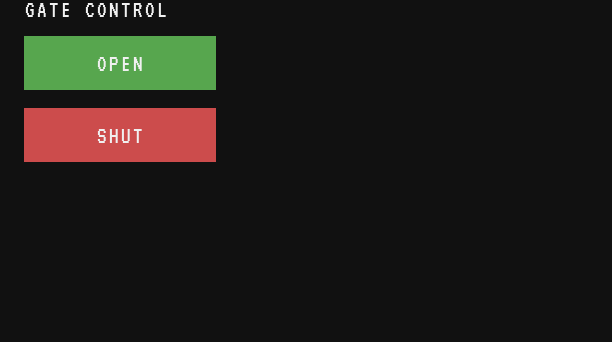
Since the program waits with os.pull_event("click"), the monitor turns into a touch screen as soon as it starts. The built-in buttons program is a complete control panel built the same way.