
 Colours
The 16 colours of the screens: their names, numbers, sprite digits and exact shades.
Every colour screen has the same 16 colours, the colours of Minecraft's dyes. Each colour has three spellings, used in different places:
- a name, like
"red", forterm.colorsand for drawing withgfx; - a number from 0 to 15, which the terminal functions take:
term.colors.redis 14; - a hex digit,
0tof, one per pixel in the sprites ofgfx.image:eis red.
| Colour | Name | Number | Sprite digit | Shade |
|---|---|---|---|---|
white | 0 | 0 | #F0F0F0 | |
orange | 1 | 1 | #F2B233 | |
magenta | 2 | 2 | #E57FD8 | |
light_blue | 3 | 3 | #99B2F2 | |
yellow | 4 | 4 | #DEDE6C | |
lime | 5 | 5 | #7FCC19 | |
pink | 6 | 6 | #F2B2CC | |
gray | 7 | 7 | #4C4C4C | |
light_gray | 8 | 8 | #999999 | |
cyan | 9 | 9 | #4C99B2 | |
purple | 10 | a | #B266E5 | |
blue | 11 | b | #3366CC | |
brown | 12 | c | #7F664C | |
green | 13 | d | #57A64E | |
red | 14 | e | #CC4C4C | |
black | 15 | f | #111111 |
The names are written in English, in lowercase, with an underscore: light_blue, light_gray. Watch the spelling of gray (not grey). The shades are the exact colours the screens show; black is a very dark gray, the colour of an empty screen.
local NAMES = {"white", "orange", "magenta", "light_blue", "yellow", "lime", "pink", "gray",
  "light_gray", "cyan", "purple", "blue", "brown", "green", "red", "black"}
local DARK = {[7] = true, [10] = true, [11] = true, [12] = true, [14] = true, [15] = true}
gfx.clear("black")
gfx.text(4, 6, "THE 16 COLOURS: NUMBER, SPRITE DIGIT, NAME", "white")
for n = 0, 15 do
  local x = 4 + (n % 4) * 76
  local y = 20 + (n // 4) * 38
  gfx.rect(x, y, 72, 34, n, true)
  if n == 15 then gfx.rect(x, y, 72, 34, "gray") end
  local ink = "black"
  if DARK[n] then ink = "white" end
  gfx.text(x + 4, y + 4, tostring(n), ink, 2)
  gfx.text(x + 62, y + 4, string.format("%x", n), ink)
  gfx.text(x + 4, y + 24, NAMES[n + 1], ink)
end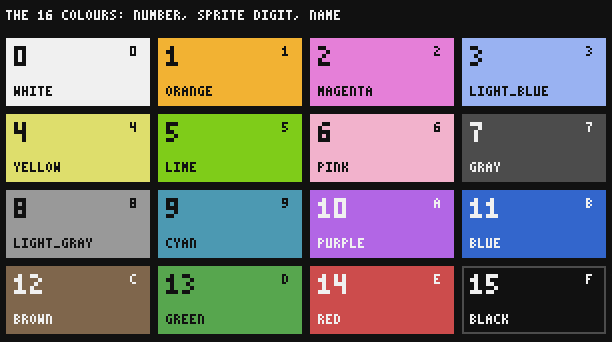
In the terminal: numbers
term.set_fg (the text) and term.set_bg (the cells behind it) take a number. Write it with term.colors, which is easier to read than the number itself:
term.set_fg(term.colors.orange)
print("Furnace lit")
term.set_fg(term.colors.white)
print(term.colors.red, term.colors.black)Furnace lit 14 15
A name is not accepted there, and neither is a number outside 0 to 15:
term.set_fg("red")snippet:1: bad argument #1 to 'set_fg' (number expe cted, got string)
term.set_fg(16) stops with bad argument #1 to 'set_fg' (color must be 0..15). See term.
In drawings: names or numbers
Every function of gfx takes a name ("red"), a number (14) or term.colors.red: all three are the same colour. The special name "none" (or the number -1) erases, leaving the pixel empty. An unknown name stops the program with an error that lists the 16 names and none.
gfx.get_pixel always answers with a number. To turn it back into a name, keep the names in a list in the order of the table: the name of colour n is at index n + 1.
local NAMES = {"white", "orange", "magenta", "light_blue", "yellow", "lime", "pink", "gray",
  "light_gray", "cyan", "purple", "blue", "brown", "green", "red", "black"}
gfx.rect(1, 1, 10, 10, "cyan", true)
print(NAMES[gfx.get_pixel(5, 5) + 1])cyan
In sprites: hex digits
gfx.image draws a list of strings, one character per pixel. The character is the number of the colour written in hexadecimal: 0 to 9, then a (10) to f (15), capitals accepted. Any other character, usually ., leaves the pixel as it is.
local sprite = {
  "0123",
  "4567",
  "89ab",
  "cdef",
}
gfx.clear("black")
gfx.rect(9, 9, 66, 66, "white")                  -- a frame, to see the black pixel
gfx.image(10, 10, sprite, 16)
gfx.rect(99, 9, 194, 14, "white")
gfx.image(100, 10, {"0123456789abcdef"}, 12)
gfx.rect(100, 40, 192, 12, "yellow", true)       -- a yellow strip under the next sprite
gfx.image(100, 40, {"e.e.e.e.e.e.e.e."}, 12)
gfx.text(100, 58, "DOTS LEAVE THE PIXEL UNTOUCHED", "white")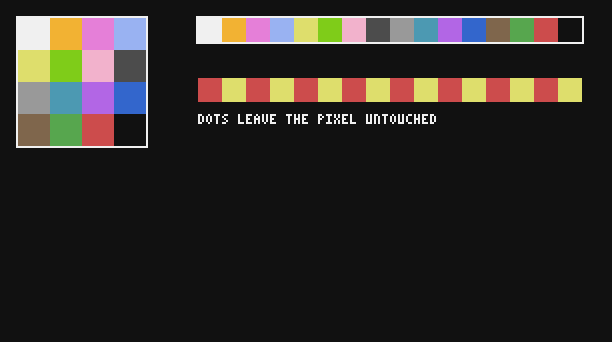
Screens without colours
Not every screen shows the 16 colours:
| Screen | Text and cell colours | Drawing (gfx) |
|---|---|---|
| Personal Computer, Microcontroller, Modern Computer | shown | shown |
| Transistor Mainframe (green), Minicomputer (amber) | ignored: every character glows in the phosphor colour on a dark screen | every colour except black lights up in the phosphor colour; black stays dark |
| Tube Computer (teletype) | ignored: dark ink on paper | no gfx |
| LCD Monitor, on any computer | shown | shown |
| CRT Monitor | as on the computer's own screen (the teletype's paper becomes green phosphor) | as on the computer's own screen |
The computer always remembers the colours a program chose; only the screen decides whether to show them. An LCD Monitor placed against a Transistor Mainframe shows them all. The same palette on the amber screen of a Minicomputer:
local NAMES = {"white", "orange", "magenta", "light_blue", "yellow", "lime", "pink", "gray",
  "light_gray", "cyan", "purple", "blue", "brown", "green", "red", "black"}
local DARK = {[7] = true, [10] = true, [11] = true, [12] = true, [14] = true, [15] = true}
gfx.clear("black")
gfx.text(4, 6, "THE 16 COLOURS: NUMBER, SPRITE DIGIT, NAME", "white")
for n = 0, 15 do
  local x = 4 + (n % 4) * 76
  local y = 20 + (n // 4) * 38
  gfx.rect(x, y, 72, 34, n, true)
  if n == 15 then gfx.rect(x, y, 72, 34, "gray") end
  local ink = "black"
  if DARK[n] then ink = "white" end
  gfx.text(x + 4, y + 4, tostring(n), ink, 2)
  gfx.text(x + 62, y + 4, string.format("%x", n), ink)
  gfx.text(x + 4, y + 24, NAMES[n + 1], ink)
end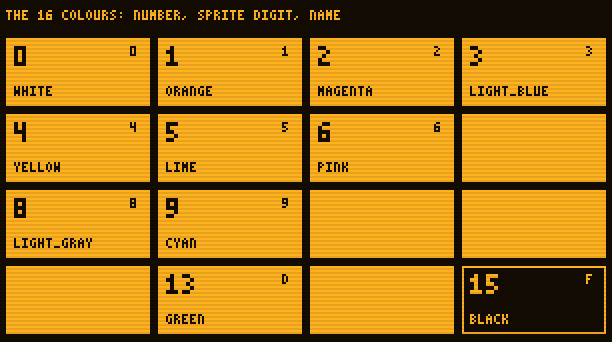
On these screens, only black and "not black" count: black text on a lit block disappears, and so do the white labels here, drawn on blocks that are lit too. For a program meant for them, draw in black and one other colour.
Choosing colours
A few habits make screens easier to read, in a dark factory as on a sunny monitor wall:
- keep the meaning of a colour the same everywhere:
limeorgreenfor running and full,yellowororangefor low or busy,redfor stopped, empty or overloaded; - write dark text (
black) on light colours (white,yellow,lime,light_blue,pink...) and white text on dark ones (gray,blue,purple,brown,red,black); - do not rely on colour alone: add a word (
OK,LOW,STOP), so that the screen still works on a Transistor Mainframe and for colour-blind players.
See Screens and monitors for the layout of a whole screen.